CSV to Excel File (XLSX) [DEPRECATED]
This action is deprecated, meaning it is outdated and no longer maintained. It can still be used, but the updated version here (opens in a new tab) includes new features and bug fixes.
Description
This action converts your CSV into an XLSX format, i.e. an Excel File.
The delimiters of the CSV input are recognized automatically.
Possible delimiters:
- Comma
, - Tab
- Space
- Semicolon
; - Pipe
|
Input Arguments
| Input Argument | Type | Description | Required? | Advanced Option? | Default |
|---|---|---|---|---|---|
CSV | String in CSV format | The CSV code or a file containing CSV | ✔️ | ✔️ | - |
Data Includes Header? | Boolean | Yes: The first line of the CSV input will be formatted as headers in the Excel table. No: Default names will be included as headers in the Excel table. | ✔️ | ✔️ | Yes |
Output
| Response | Type | Description |
|---|---|---|
File response | Object | The XLSX File response from the CSV |
File response as string | String | The XLSX File response from the CSV formatted as a String |
XLSX File contains tables with formatting options. Power Automate Examples
Basic CSV with Comma delimiter with headers
We use a simple CSV with four pets.
Pet; Identifier;First name;Last name
Dog;1000;Eats;A Lot
Cat;1001;Likes;To Scratch
Cat;1002;Furry;Kitty
Duck;1003;Dagobert;Swimmy
We have not changed the advanced options.
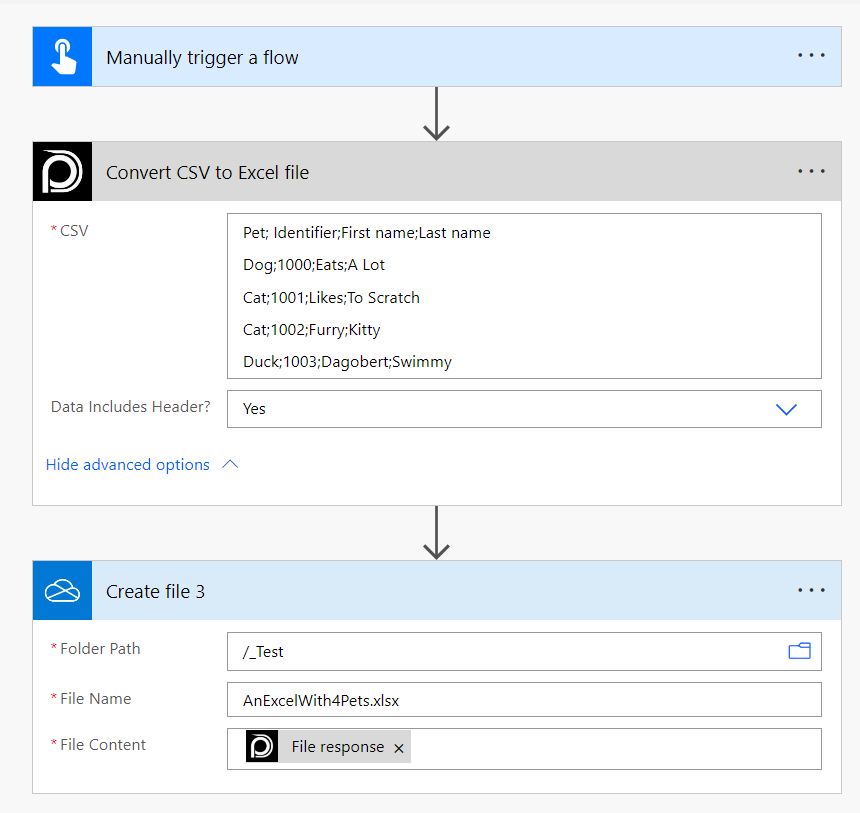 To save it in
 OneDrive you need to choose File response as the File Content setting.
Basic CSV with Pipe | delimiter and without headers
We once again use a simple JSON with four pets.
Dog|1000|Eats|A Lot
Cat|1001|Likes|To Scratch
Cat|1002|Furry|Kitty
Duck|1003|Dagobert|Swimmy
We have directly entered the CSV into our action. We have not changed in the Advanced Options that there is no header included.
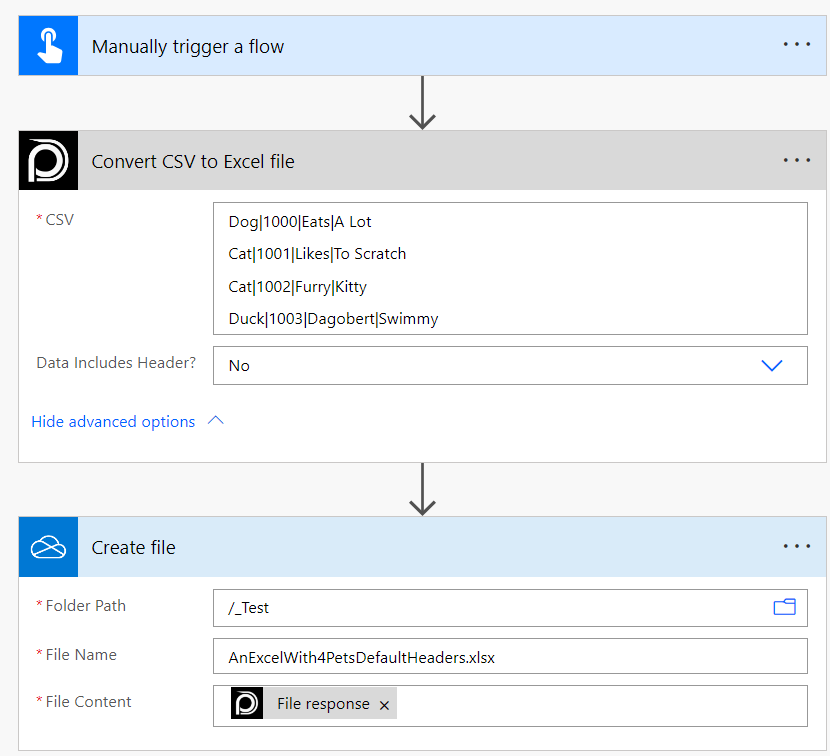 To save it in
 OneDrive you need to choose File response as the File Content setting.